Navigation
Doc Flow+ opens inside Trello as an iframe. Use the board button for the full workspace, or the card button for quick AI actions on one card.
Board dashboard
Click Doc Flow+ on your Trello board menu bar to open the dashboard.
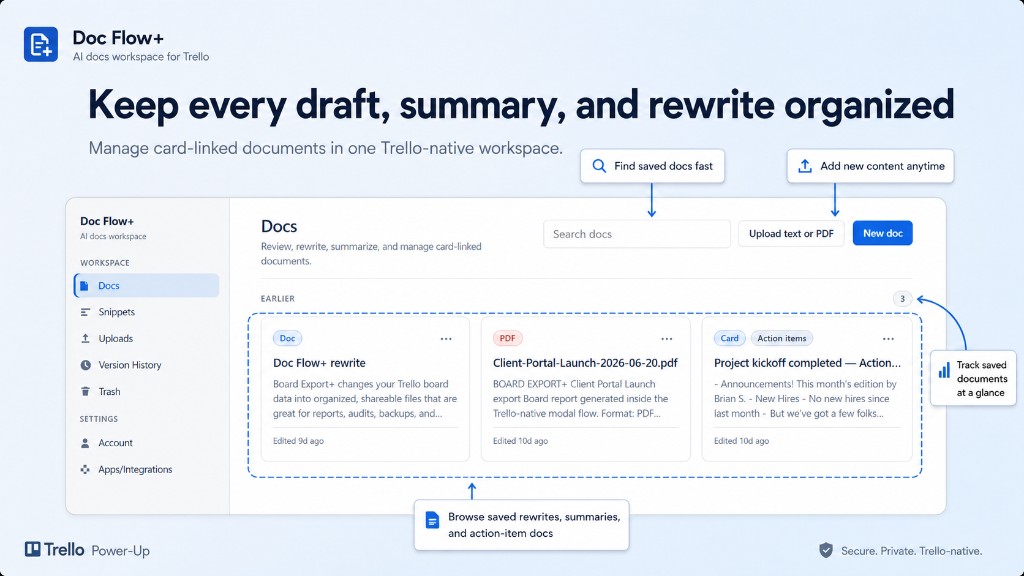
The left sidebar is your main navigation. Everything is scoped to the current board.
Workspace
| Sidebar item | Opens |
|---|---|
| Docs | Board documents — search, open, proofread, rewrite, summarize, delete; New doc and Upload text or PDF |
| Snippets | Reusable text blocks to insert in AI Review |
| Uploads | Upload TXT or PDF, extract text, run AI actions |
| Version History | Saved versions for a selected document |
| Trash | Restore or permanently delete removed documents |
Settings
| Sidebar item | Opens |
|---|---|
| Account | Usage stats, Trello connection, link to Open full settings |
| Apps & Integrations | Trello and AI provider connection status |
Full settings (defaults, enabled actions, privacy modes) open from Account → Open full settings, or from the Settings item in the Trello Power-Up menu.
Card button menu
On any card, click Doc Flow+ for AI actions without opening the full dashboard:
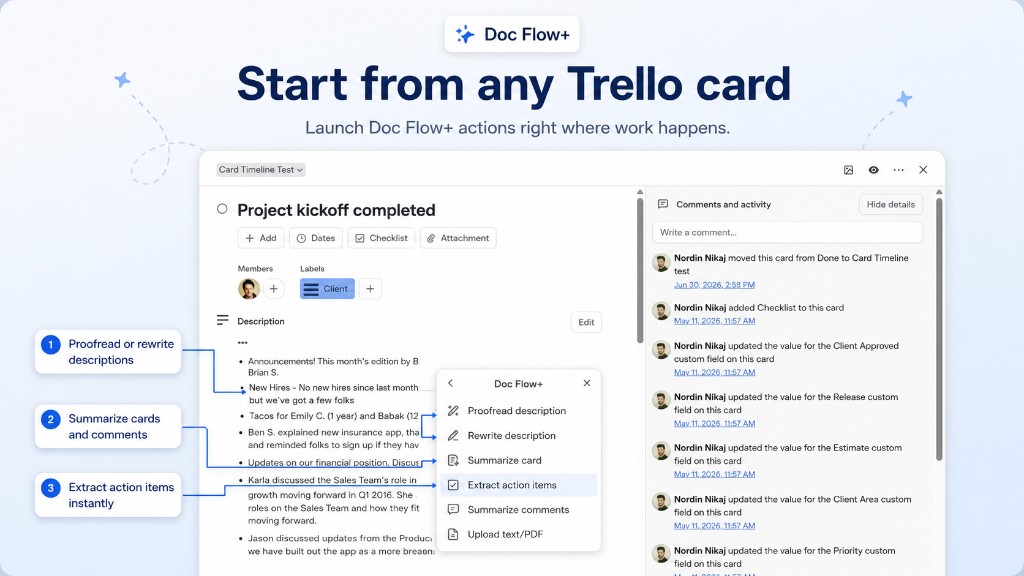
| Menu item | Opens |
|---|---|
| Proofread description | AI Review — grammar and clarity |
| Rewrite description | AI Review — tone and style |
| Summarize card | AI Review — shorter summary |
| Extract action items | AI Review — tasks for a checklist |
| Summarize comments | AI Review — comment thread summary |
| Upload text/PDF | Upload flow for this card |
AI Review
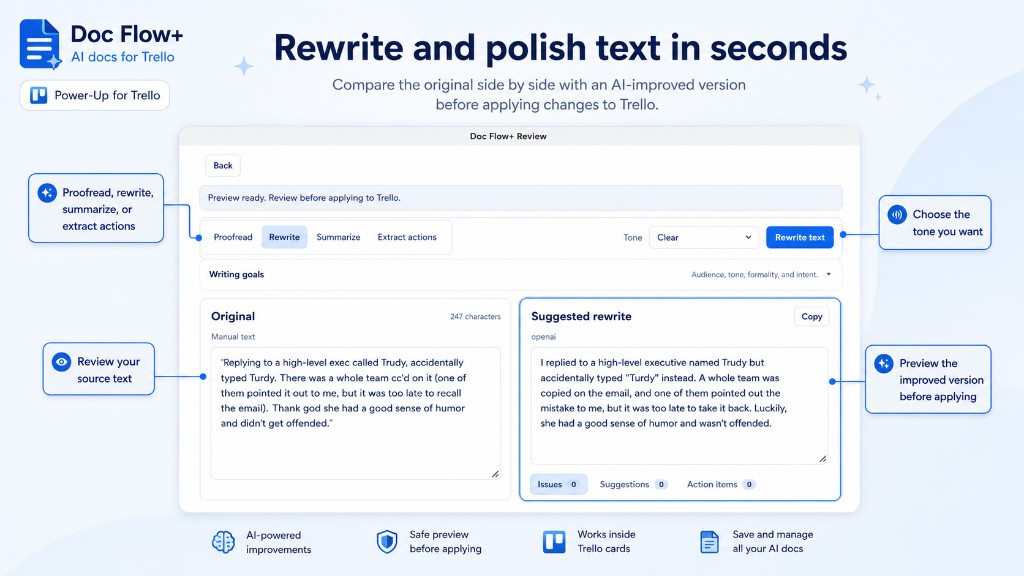
Most card actions open AI Review — original text on the left, AI result on the right. Nothing is written back to Trello until you confirm.
Next: Daily use for the full workflow.