Getting started
Install on a board
- Open your Trello board.
- Click Power-Ups and search for Doc Flow+.
- Click Add / Enable.
- Authorize Doc Flow+ when Trello asks — this lets the Power-Up read card text and write back only when you confirm.
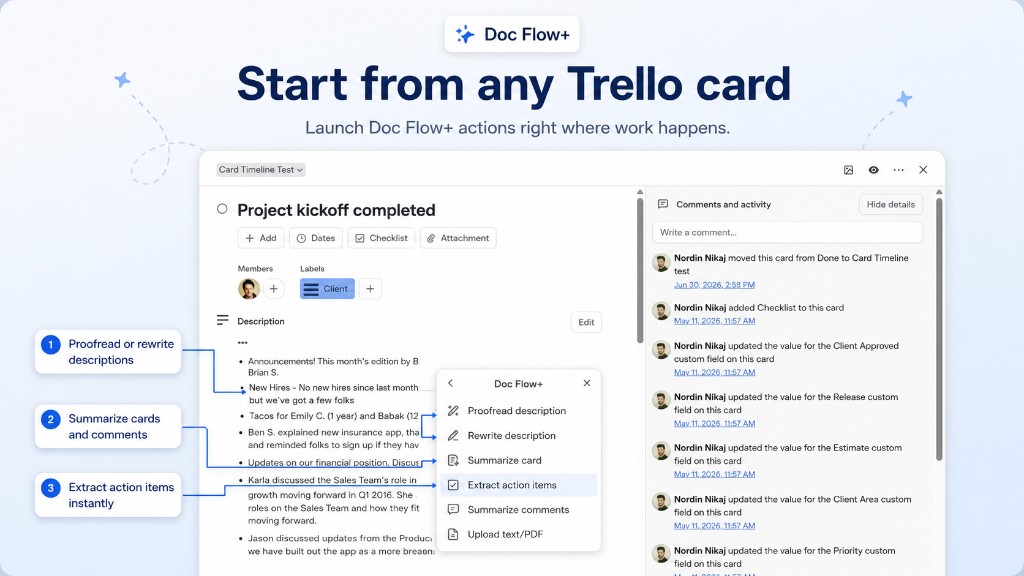
You should then see a Doc Flow+ board button and a Doc Flow+ button on each card.
Connect Trello
Authorization is requested when you first open the dashboard or run an AI action. If you see Trello authorization required, click Reconnect Trello and complete the popup.
Check status under Account or Open full settings → Trello connection. Tokens are stored encrypted server-side and never shown again in the UI.
Board scope
Settings and saved documents are scoped to the current board. Each board you enable Doc Flow+ on has its own workspace.
First review
- Open any card with a description.
- Click Doc Flow+ → Proofread description.
- Click Proofread text to run the review.
- Copy the result or Apply to card after confirming the dialog.
Next: Navigation for the dashboard map, or Daily use.