Doc Flow+ User Guide
Doc Flow+ is a free Trello Power-Up for proofreading, rewriting, summarizing, and versioning text on cards and uploaded files — without leaving your board.
See it in action
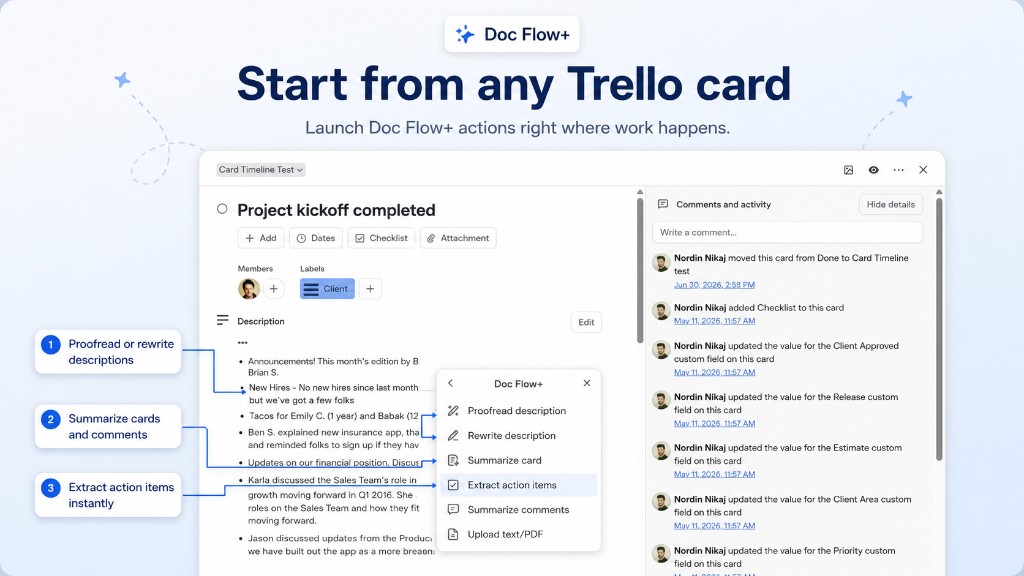
Open Doc Flow+ from any card — proofread, rewrite, summarize, extract action items, or upload a file.
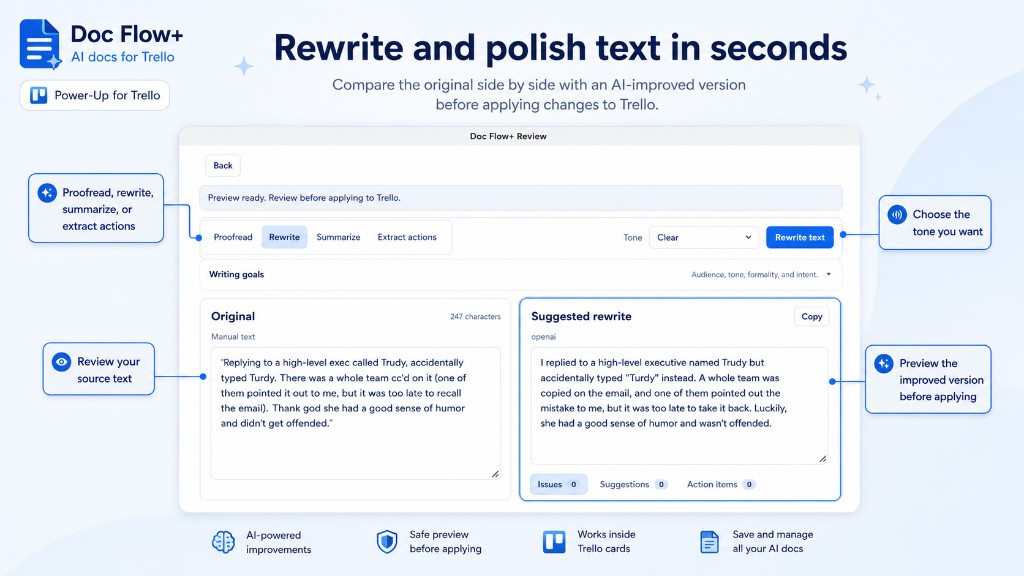
Review AI suggestions side by side with the original text. Nothing is applied until you confirm.
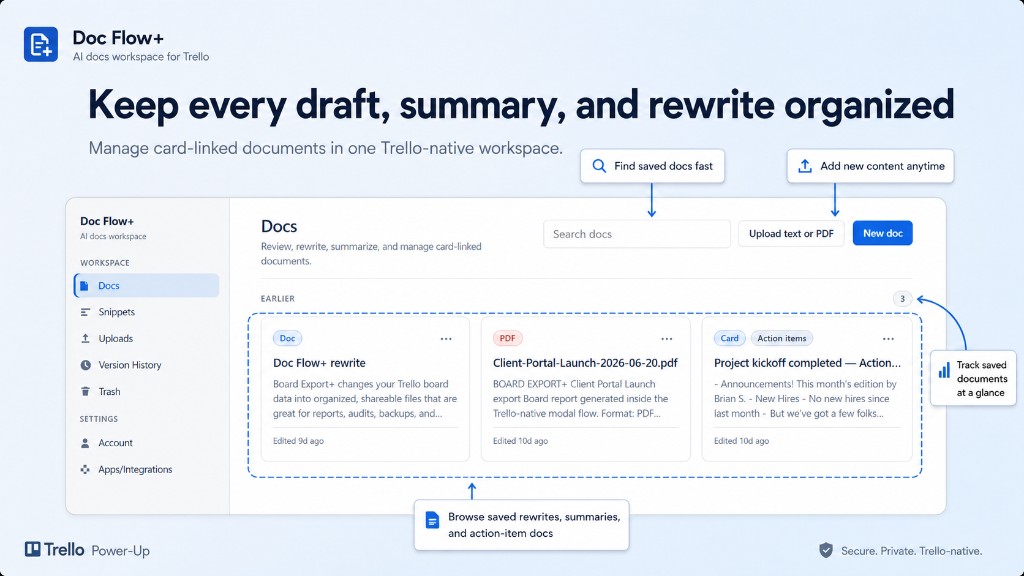
Use the sidebar to navigate Docs, Uploads, Version History, Account, and more.
See Navigation for a full map of the dashboard.
What you can do
- Proofread, rewrite, or summarize a card description
- Extract action items and create a Trello checklist
- Summarize comment threads on a card
- Upload TXT or PDF and run AI on extracted text
- Save snippets and insert them into AI Review
- Save versions and restore from history
- Apply approved text back to Trello (always with confirmation)
Doc Flow+ never overwrites card text automatically.
Where to find it in Trello
| Entry point | Opens |
|---|---|
| Board button | Docs dashboard — sidebar navigation for the whole workspace |
| Card button | AI actions and upload for the current card |
| Settings (Power-Up menu) | Quick settings popover |
| Account → Open full settings | Full settings (defaults, privacy, enabled actions) |
Quick start
- Add Doc Flow+ to your board via Power-Ups in Trello.
- Authorize when prompted.
- Open a card → Doc Flow+ → Proofread description (or Rewrite / Summarize).
- Review the result, then copy, save, or apply to the card.
See Getting started for install details, Navigation for the dashboard map, or Daily use for the full workflow.
Free on Trello
Doc Flow+ is free while we gather feedback and improve the Power-Up. All core features are included at no cost — no credit card required.
Fair-use limits apply per board workspace (AI actions, uploads, stored documents) to keep the service stable. Usage counters appear on the Account screen.
Paid plans and billing may be introduced later. When that happens, this guide and the Trello listing will be updated.